
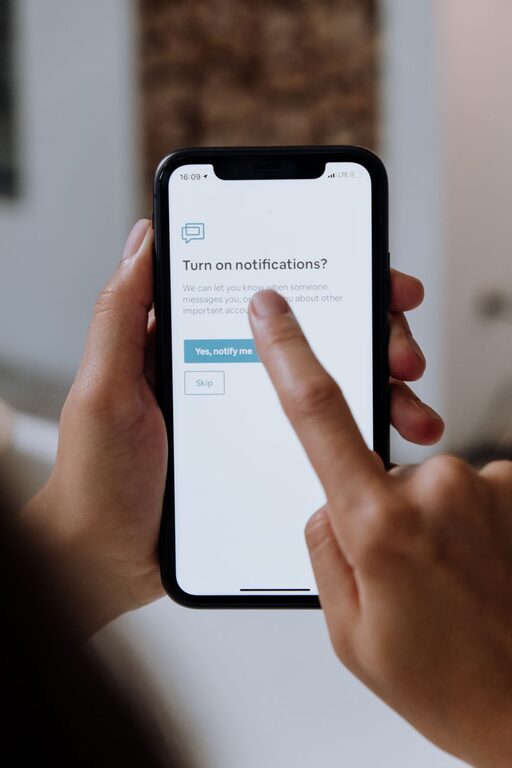
In today’s digital world, notifications are constant. From emails and social media to messaging apps and news alerts, these little pings demand our attention throughout the day. While notifications can be helpful, too many can become overwhelming and interrupt your focus, productivity, and peace of mind. Setting clear boundaries with notifications is essential for maintaining a balanced, distraction-free routine.
In this post, we will explore practical tips to help you manage and set boundaries with notifications effectively.
Why Setting Boundaries with Notifications Matters
Notifications are designed to capture your attention, but when overused, they can:
– Break your concentration during important tasks
– Increase stress levels due to constant interruptions
– Affect your ability to relax and unwind
– Reduce your overall productivity
By setting boundaries, you regain control over when and how you engage with notifications, leading to improved focus and well-being.
Assess Your Current Notification Setup
Before making changes, take a moment to evaluate how notifications currently impact you:
– How many notifications do you receive daily?
– Which apps or services send the most alerts?
– Are certain notifications urgent or just distractions?
– When are you most frequently interrupted?
Answering these questions helps you identify where boundaries are most needed.
Tips for Setting Boundaries with Notifications
1. Customize Notification Settings by App
Most smartphones and computers allow you to customize notifications per app. Consider:
– Turning off non-essential notifications completely.
– Setting apps to “silent” or “banner-only” modes.
– Disabling sound or vibration alerts for less urgent apps.
This helps reduce the noise and lets only important notifications reach you.
2. Use “Do Not Disturb” or Focus Modes
Both iOS and Android offer “Do Not Disturb” or focus modes that limit notifications during specific times or activities.
– Schedule these modes for work hours, meetings, or sleep.
– Allow exceptions for calls or messages from key contacts.
– Use focus modes to create distraction-free time blocks.
This creates intentional periods without interruptions.
3. Set Specific Times to Check Notifications
Avoid the temptation to check alerts constantly by:
– Designating times during the day to review emails and messages.
– Turning off notifications outside those times.
– Using a timer or reminder to stick to your schedule.
Batch processing notifications helps keep distractions at bay and improves productivity.
4. Prioritize Notifications
Not all notifications are created equal. Prioritize by:
– Allowing only urgent notifications to alert you immediately.
– Grouping less important alerts to appear silently or only on your notification center.
– Unsubscribing from newsletters or promotional notifications you rarely read.
This way, you only respond when necessary.
5. Manage Notifications on Multiple Devices
Notifications often come from many devices such as phones, tablets, laptops, and smartwatches. To avoid duplicate alerts:
– Sync your notification settings across devices.
– Disable notifications on secondary devices during focused work.
– Use device-specific settings to tailor alerts by context.
Streamlining notifications reduces overload.
6. Turn Off Social Media Notifications
Social media apps are among the biggest sources of distraction. Consider:
– Disabling push notifications for likes, comments, and follow requests.
– Setting specific times to check social media rather than responding to every alert.
– Turning off notifications during work or family time.
This helps maintain a healthy distance from constant social feed interruptions.
7. Inform Your Contacts About Your Boundaries
If you rely on messaging apps for work or personal communication, let your contacts know when you’ll be available or offline.
– Set status messages that indicate focus time.
– Use auto-replies or away messages during do-not-disturb periods.
– Encourage others to use email or scheduled calls for non-urgent communication.
Clear communication helps manage expectations and respects your boundaries.
Additional Tools and Apps to Help Manage Notifications
There are apps specifically designed to help control notification overload:
– Notification Managers: Apps that allow you to batch notifications or set smart filtering.
– Focus Apps: Tools like Forest or Focus@Will help you stay on task without distractions.
– Email Management Apps: Tools that help prioritize important emails and reduce clutter.
Exploring these options can add structure to how you handle alerts.
Benefits of Setting Notification Boundaries
By managing your notifications well, you can expect:
– Increased concentration and productivity
– Less anxiety and mental fatigue
– More quality time for work, family, and relaxation
– Better sleep due to fewer nighttime interruptions
Setting boundaries is an investment in your overall well-being.
Final Thoughts
Notifications serve a purpose, but without boundaries, they quickly become a source of stress. The key is to tailor your notification settings to your lifestyle and priorities. Start small by adjusting one or two apps and gradually build your ideal notification routine. With consistent effort, you’ll enjoy greater focus, peace, and control over your digital life.
Remember, it’s perfectly okay to disconnect sometimes—you deserve it!